GTM’s New Tagging Experience: What I Noticed While Upgrading


I’ve started moving client containers to the new optimized tagging experience in Google Tag Manager. Most of the work is the part you’d expect: review the Google tags, decide which settings to keep, test in Preview, publish. A couple of things still slowed me down, and neither of them was in the documentation I’d read beforehand.
I shared a short version of these notes with the MeasureU community. This is the longer one: what the update changes, whether it’s worth it with server-side GTM, the permission issue that blocked me, the Preview mode change that confused me, what to do with lookup tables, and the checks I now run before I publish an optimized container.
What the update changes, in short
The GTM container now works as a Google tag too. GA4 properties, Google Ads accounts and Floodlight configurations connect to it as destinations, and they share one set of settings that lives on the new Settings page of the workspace: automatic event detection, cross-domain domains, user-provided data and the rest.
The bigger change happens in the browser. Optimized destinations no longer load their own gtag.js file next to gtm.js. The container carries what the destinations need, which means fewer requests and less code on the page.
What loads on the page
Legacy setup
gtm.jsloads- Google tag for GA4 loads
gtag.js?id=G-… - Google tag for Ads loads
gtag.js?id=AW-… - Each one brings its own settings
Optimized container
gtm.jsloads- GA4 and Ads are destinations of the container
- One shared set of settings
- No extra
gtag.jsfiles for them
The upgrade runs through a wizard. It adds the changes to your workspace, and nothing goes live until you publish, so you can test everything in Preview first and roll back to a previous version if something goes wrong. Google’s guide is here: Upgrade to the new tagging experience.
Is it worth it if you already use server-side GTM?
I saw this question in a discussion on #measureslack, and it’s a fair one: if a container already sends data to a tagging server and the Google scripts load from the client’s own domain, is the upgrade worth touching a setup that works?
A first-party domain changes where gtag.js is downloaded from. The browser still downloads it, once for every Google ID loaded through a Google tag (G-, AW-, GT-, DC-). Optimized destinations don’t need those extra files, so the benefit applies to server-side setups as well. How much it’s worth depends on the container: a site that loads only GA4 drops one request, a site with GA4, Google Ads and Floodlight drops several. I wouldn’t promise a specific speed improvement to a client without measuring it on their site, before and after.
The server container itself doesn’t need any changes. In the web container, a few things to keep an eye on:
server_container_urlstays in the destination tag. After the migration, check that it still has the same value or variable pointing to your tagging server.- The Conversion Linker tag is no longer needed in the web container. It’s now marked as legacy, because optimized Google Ads destinations take care of what it used to do. Remove it once the Google Ads destination is migrated and tested. The server container is a separate story: if your Google Ads tags run there, leave its Conversion Linker in place.
- Test both sides. In web Preview, the requests under Hits sent should go to your tagging server URL. In server Preview, the expected server tags should still fire.
For a server-side setup that works, I’d schedule the upgrade for a week when there’s time to test it properly. The banner in GTM can wait a few days.
“Failed to link destination”: a GTM permission
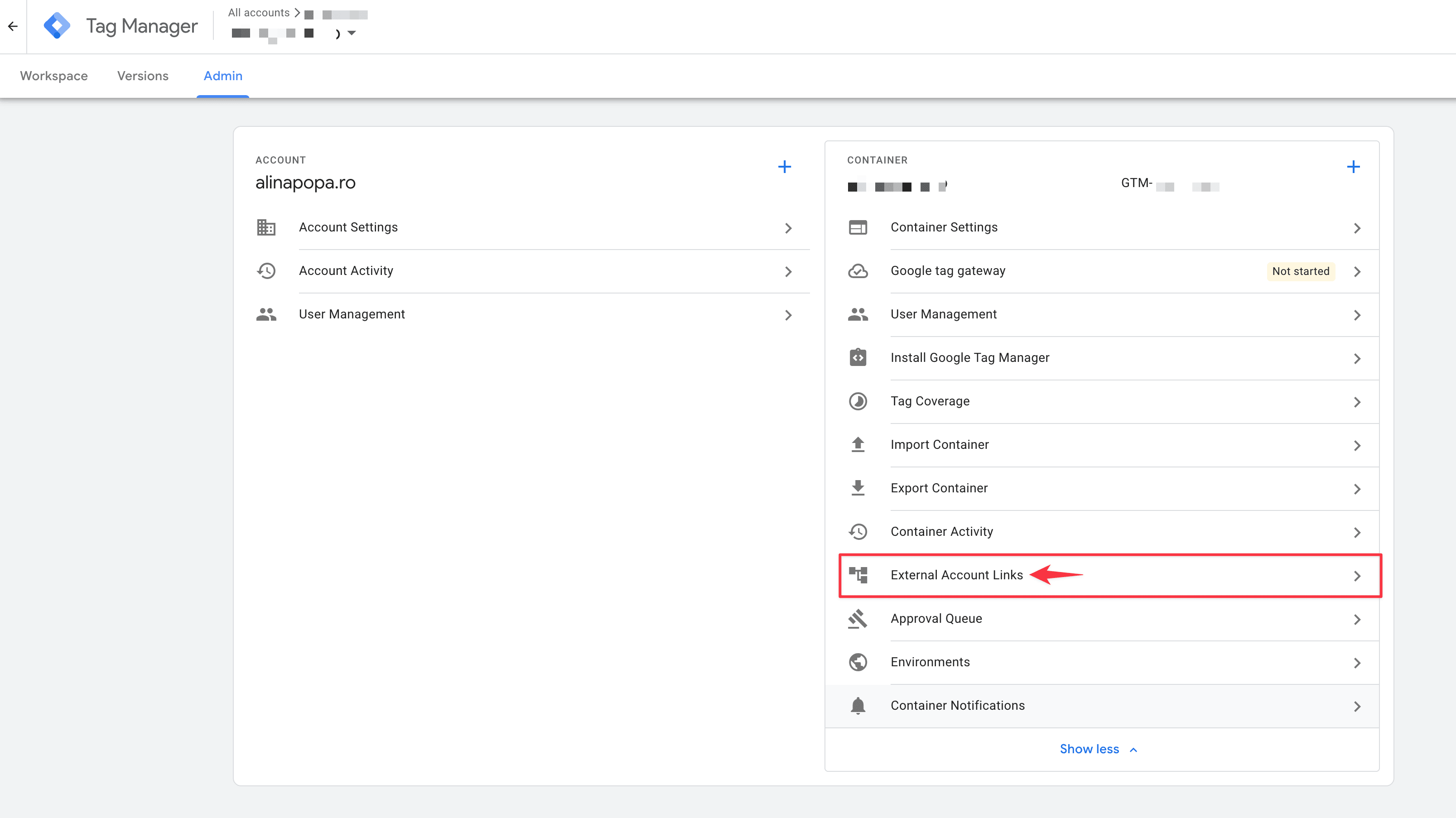
There’s a new External Account Links section under GTM → Admin → Container. It controls the connection between the container and each Google destination, including the access people with access to that Google tag get to the container.
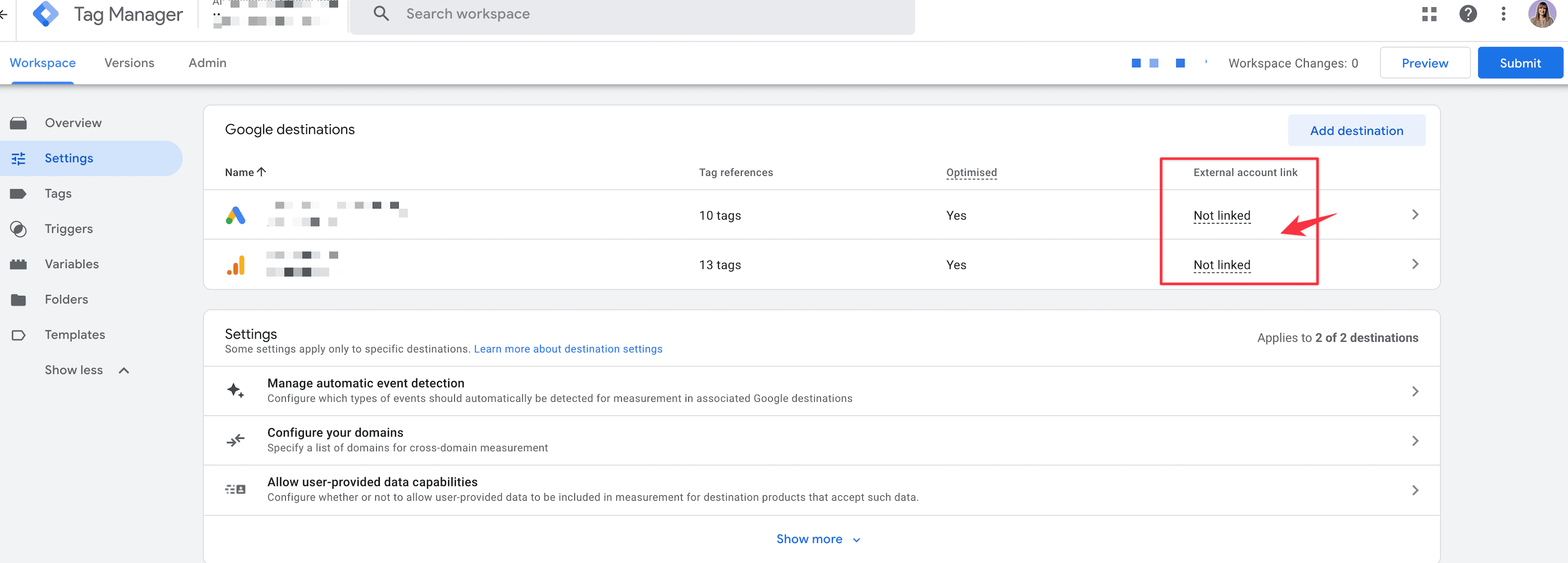
On one client container, the GA4 and Google Ads destinations were optimized but showed Not linked in the External account link column. Every time I tried to link them, I got the same message: “Failed to link destination.”
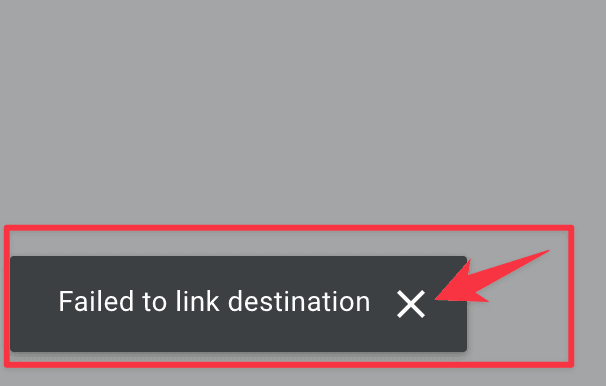
My first guess was the GA4 or Google Ads side. It wasn’t: I had Admin access in both. In GTM I had Publish permission on the container, which is usually enough for any change I make there.
Linking a destination needs more. The client gave me Admin permission on the GTM container, I tried again, and the link worked right away. It makes sense once you think about it: linking also decides who outside GTM gets access to the container, and Google’s guide says it’s the Tag Manager admins who set that level of access.
Linking a destination: what I had, and what happened
| GTM container | GA4 & Google Ads | Result |
|---|---|---|
| Publish | Admin | Failed to link |
| Admin | Admin | Linked |
If you’re wondering whether a “Not linked” destination loses data: from everything I’ve read, it doesn’t. Optimized and linked are two separate statuses, and an optimized destination sends its hits either way. The link is about access. Without it, the people who work in that GA4 property or Google Ads account can’t see the container from their side. If an agency manages GTM on its own, that may be fine. If the client’s team checks tag settings from Google Ads, the link matters.
Two more things worth knowing about these links:
- Permissions aren’t versioned. Access changes made here or in the wizard apply as soon as you save them, even if the workspace with the tag changes isn’t published yet. Rolling back the container doesn’t undo them.
- Access goes one way. People with access to a linked Google tag can get Read access to the container. People with access to the container don’t get anything in GA4 or Google Ads. Read access is only the default: in the wizard, and later in External Account Links, you can set it to No access for each destination. Before linking, I look at who has access to each Google tag, especially on accounts with former agencies or freelancers still listed.
Where the GA4 and Google Ads tabs went in Preview mode
The second thing took me longer than I’d like to admit. In Tag Assistant, I’m used to seeing the container next to separate tabs for the GA4 and Google Ads destinations at the top of the screen. After optimization, only the container is there. My first reaction was that something hadn’t loaded.
Everything was fine. The destinations no longer load as separate Google tags, so they no longer get separate tabs. You still see their IDs under Destination IDs in the container details, and the requests they send are in the new Hits sent tab of the container output.
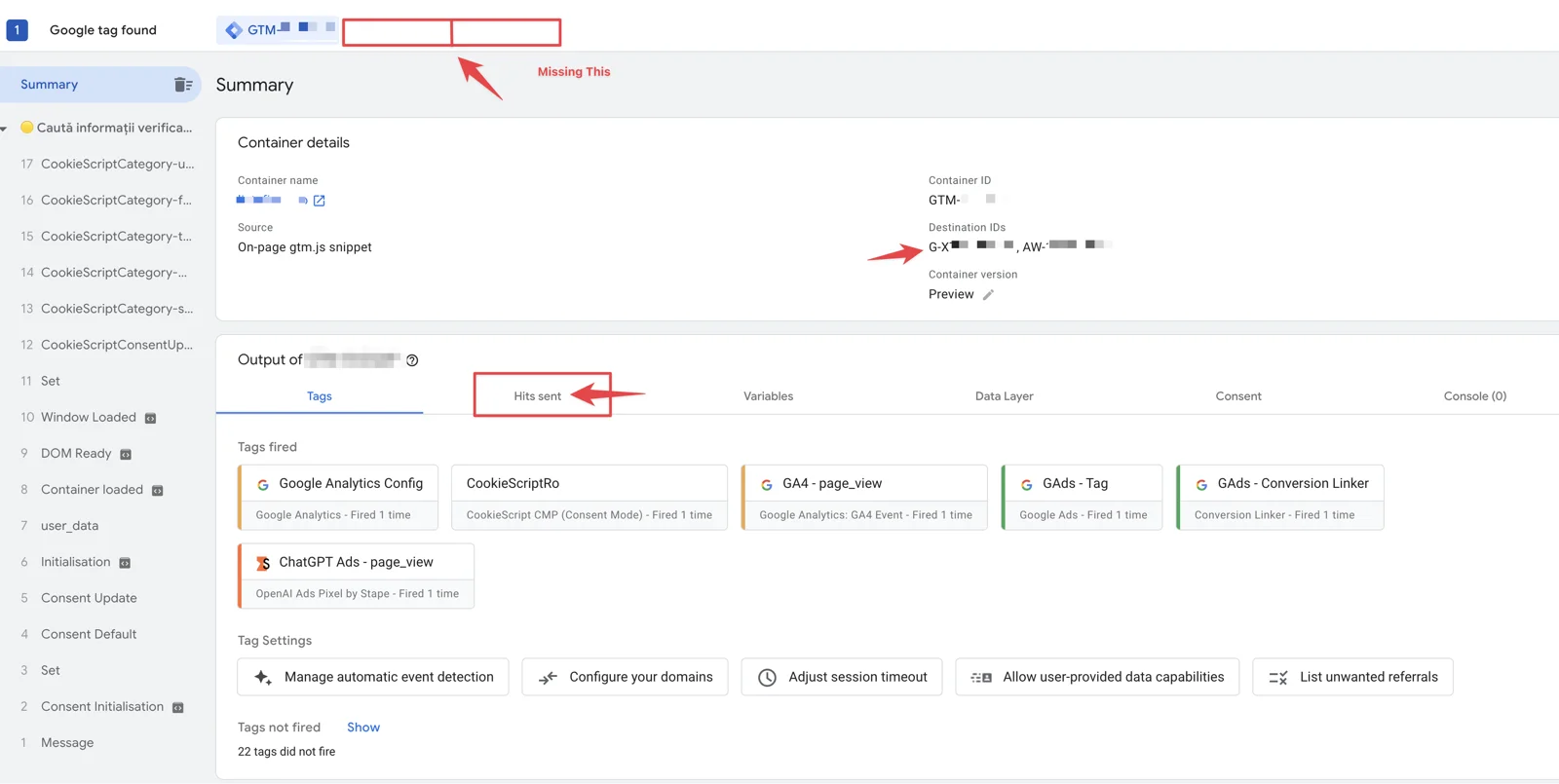
In Hits sent, I check the same things I used to check in the destination tabs: that the GA4 events go to the right measurement ID with the expected parameters, that Google Ads conversions carry the right conversion label and value, and that nothing fires twice.
Containers that pick IDs from a lookup table
Many containers take the GA4 Measurement ID or the Google Ads ID from a Lookup Table variable: one ID for staging and one for production, or one per country site. The wizard doesn’t handle this well. The optimization prompt may not show up at all, or the Google tags get flagged as “Ineligible for optimization”.
The workaround described by Analytics Mania:
- In the Google tag, temporarily replace the Lookup Table variable with one of the static IDs. Don’t publish this change.
- Run the optimization wizard.
- Put the Lookup Table variable back in the new destination tag.
- Check the Settings page. The other IDs from the table may show as optimized but “Not linked”. Link them manually if the people in those accounts need access.
- Test every hostname or site in Preview and confirm the hits go to the right ID.
After that, GA4 event tags may show a warning that they can’t detect their destination. That’s expected when the ID comes from a lookup table, because the check doesn’t look inside the table. What matters is what you see in Hits sent.
One more thing from the same #measureslack discussion, which I haven’t run into myself: a Google Ads ID built from two separate variables stopped working properly after the update, and the lookup tables had to be adjusted. If your Ads conversions use a similar setup, check them first.
What I check before I publish an optimized container
The wizard does most of the work, but it only sees what’s in GTM. This is my short list for each container:
- Google tags outside GTM. A
gtag.jssnippet hardcoded in the theme, added by a plugin or by a platform integration isn’t touched by the upgrade. If the same destination is also in the container, that’s a double count waiting to happen. - Destination IDs. Test and production properties often have similar names. I compare the IDs, not the names.
- Different settings per tag. If the GA4 and Google Ads tags were configured differently (user-provided data, cross-domain, event detection), the wizard asks you to pick one as the starting point. That choice now applies to all optimized destinations, so I make it with the client’s consent setup in front of me.
- Access. Container Admin for whoever does the linking, and a quick review of who gets Read access through the links.
- Preview, then publish. Consent default and update, page views, key events and conversions in Hits sent. Then I publish and check again on the live site.
If you’re still checking whether conversions are measured correctly in the first place, start there. I wrote about that in Your Tracking Isn’t Failing. It’s Misleading You.
Further reading
These are the things I ran into during the first upgrades. There’s a lot more to this update than the interface: how shared settings and destination settings interact, the new data transmission setting, what the destination tags can override. Simo Ahava’s article covers all of it and is worth reading before you upgrade client containers: Optimized Tagging Experience in Google Tag Manager.
And if you hit “Failed to link destination”, check your GTM permissions first. It would have saved me some time. 😅
Stay curious.